
🔥 Black Friday is live — up to 70% OFF my top iPad drawing classes. 👉https://www.henrygao.com/bf2025
If you are new to my channel, my name is Henry Gao. I help architects and designers move from traditional hand drawing methods to digital drawing on the iPad.
My method ensures a seamless transition by maintaining the genuine feel of hand drawing in a digital setting. This removes all common pen & paper hassles while elevating your efficiency to the next level.
To learn more about what I do, go here: https://www.henrygao.com
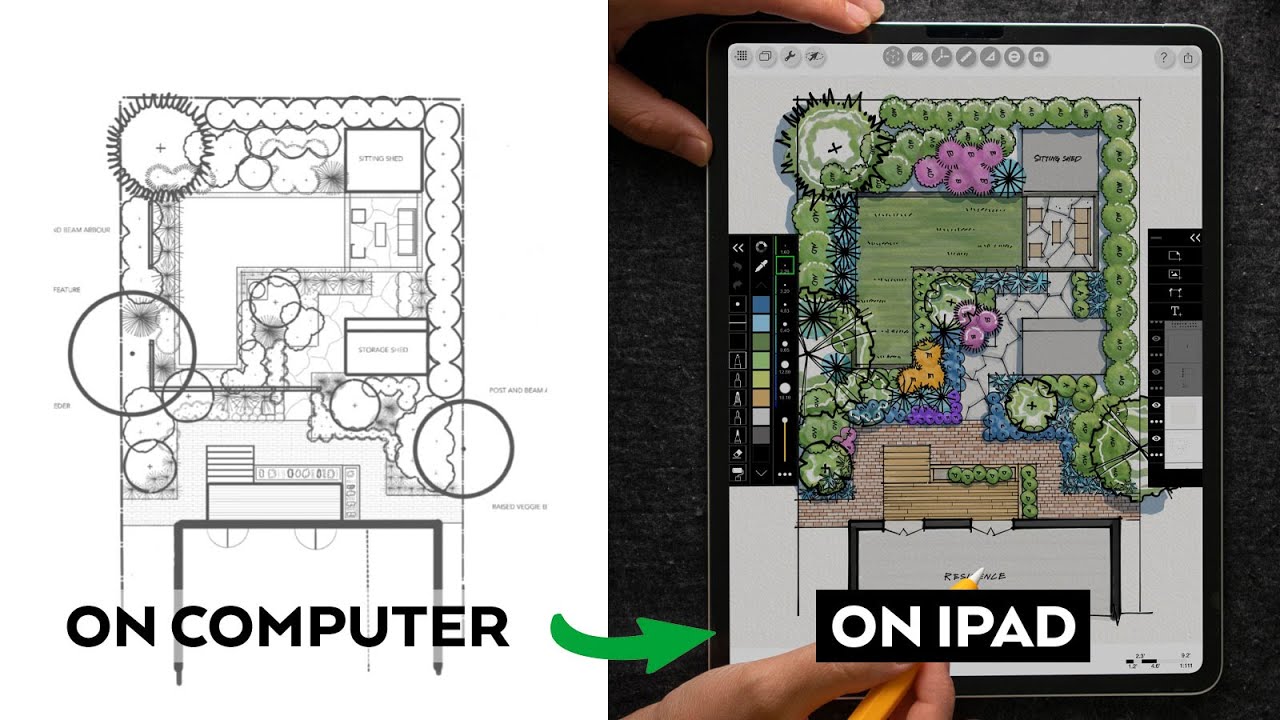
are you a landscape designer curious about replacing your traditional tools with an iPad in this mini course you will discover everything you need to know about working on residential projects I’m Henry Al and I help Architects and designers make the leap from traditional hand drawing methods to digital sketching on the iPad and in this Workshop you’ll learn how to start a project from scratch whether it’s working from an existing PDF or a photo so you can plan edit and refine Your Design effortlessly Coloring techniques that replicates the classic look of pencil and markers how to create stencils to save time on repetitive drawing task and finally adding custom title blocks to build a complete drawing set directly on iPad no computer drafting required plus all the resources mentioned in the workshop like the plant Library texture paper and case study files are available for free in the link below let’s get started when you’re working on the iPad you might be working with PDFs you might be working with a maybe a photo or a survey or a scan version of the site or the building so I want to show you a couple ways to bring that into morolo trace this might be from the engineer architect or survey the easiest way to bring this in is using the the custom option for the starting a project window a lot of people get this wrong actually they see the PDF icon and they automatically click on that but I’ll show you why this is easier to use this custom so most likely that’s coming from a cat software a has has the paper size already kind of embedded in there it has a scale so I’m going to go ahead on this custom section and I’ve loaded my files to cloud so I personally use drawbox and you can favorite your drawbox folder into your iPad file app so the file that we’ll be looking at and we’ll be loading in here is called this ass build plan and this actually is a drawing set it’s architecture drawing set exactly you’ll see uh when I click on this the option that I am prompted to select right now is the scale so the PDF actually contains multiple pages and most of the pages are in quarter inch scale it’s a residential project and there’s like one or two pages that’s not in that scale because it’s a site plan so for the sake of just calibrating a PDF I’m going to calibrate the entire PDF just for one scale only so I’m going to select this quarter in scale just to fire up this PDF it will only take a second as you can see this is a m multi-page PDF this PDF has the side plan it has the roof plan it has the floor plan and a bunch of elevations because we brought this in calibrated to scale so let’s take a look at this room Dimension and let’s now pull up our ruler tool they call the super this the super scale ruler and we can tell this this inside Dimension from end to end is 146 and you can see our ruler is approximately 14t and 6 in so so this tells me that this file was brought in correctly and it’s currently calibrated to scale so you’re actually drawing one to one so this is the general idea is if you have a file like this this could easily be a a garden plan if it has a scale embedded in the PDF and this to me is the easiest way to bring in a PDF to scale I’m going to show you two other ways to Bringing if the PDF isn’t too scale or if it’s just an image or if it’s a photo or a drone photo something like that but again when you are importing a PDF from an architect or engineer this this should be an option to you another way to bring in a drawing let’s say it’s just a PDF but it doesn’t have the build-in scale embedded in there or the paper size so we’re going to just look at this file so I’m going to bring this drawing in I don’t have to use the custom option because I don’t actually need to assign a scale to that I’m going to show you what this PDF that I am planning on bringing right now looks like this is actually a student project that I’ve recently helped with she’s used to doing everything on the computer herself she’s doing the layout she’s doing the catting her Drafting and she’s used to exporting everything on the computer I taught her to transition everything that she could do from AutoCAD completely to Mor Trace from doing the same thing from doing the layout design rendering to exporting and sharing so I just essentially took her background and I showed her the process that I’m going to be using so this is obviously this is a PDF it doesn’t have any scale to it it has a legend here that we can use to calibrate based off so that’s what I’m going to use this method will involve calibrating using a set Dimension that we know of so we don’t have to use the custom option now because it doesn’t have these embedded settings we can use just the regular PDF and this might be what you’ve been used to using so when I do bring this PDF in let’s go ahead and find I believe it’s this file right here so I’m going to click the PDF and now it’s going to fire up in my Trace so if I just pull up my ruler right now this is scaleless right so we’re going to calibrate based on this Legend right here ideally you would want to calibrate based on a longer Dimension so let’s say if you have the dimension from one end of the property map to the other that’s a lot more accurate and ideal so we’re going to use the calibration tool and we’re going to select both end of this PDF and I’ll just try to get it as accurately as I can to both ends and that’s 20 ft so I’m going to typ in 20 feet and I’m going to hit on this check mark right here okay so now this calibration you can see it was the scale was set and now if we pull up this ruler we can see that from one end to the other end is exactly 20 ft so this will work for a photo will work for a scan PDF like a lot of drawings from 10 20 years ago they’re just scan PDFs of the actual pencil drawings so it won’t have those scale factor built into it so this is Method number two and I’m going to show you one more and this method is very similar to how we’ve used to calibrate this drawing we’ll use the custom here and let’s just find it this is actually a photo you know if you have a photo if have a drun photo if you got a photo from Google Maps or Earth or somewhere this might be helpful for you so I’m going to ignore the paper size and the screen because it’s just a photo here and I’m just going to select the settings that doesn’t doesn’t really matter so this is a if I just turn off this layer this is a drone photo that I got from Apple maps in some situations you may want to work with a with a s plan while you’re waiting for certain things to come in like a survey so you can also use the method of manually calibrating based on a known Dimension if this is the length of the house I could as easily just assign two ends of that house so let’s say that is 150 ft and we’re going to calibrate based on this and this is calibrated based on this side of the house so you can pull up the ruler now and uh you can kind of of approximate the rest of the property or the site or the Land Based on this this length you can do this with not just plants you can do this for elevations too so for example like the elevation of a house or a building or just if it’s elevation of a street granted it’s fairly level and elevation can be extrapolated using this method if you’re using a door to calibrate hopefully it’s a longer Dimension that you’re using to calibrate but this is a very useful feature nonetheless next I kind of want to show you some of the features that I think will be really useful to you as a landscape designer I’ll show you what I think are top five features in workflows that I think all landscape designers should be using today the first one is this is the file that we just calibrated and we brought it in to more Trace so the next thing I would personally do is actually just to enable the grid option think of it as you’re actually using a grid paper on a clipboard which many of you probably have done in the past so this is that same idea except now because your drawing is calibrated you can enable a grided paper and assign a predetermined unit to each of the squares so for example I have just turned it on and I’m going to set each grid to be one foot in length and I do this for my architecture drawings so one foot seems to be good you know visual ually because you can quickly count the number of squares and then you can identify the length to when I’m drawing furniture and I imagine this will be the case for you as a landscape designer too so I’m going to actually make it into a different color just so that I don’t know visually it’s clear that this is a grid and it’s not interfering with anything else I will probably dial down the opacity a little bit once I dialed it to a point where I’m comfortable enough seeing it as a visual guy I can also see the actual background the second thing I want to tell you and you’ve seen so far is this visual scale ruler right so as long as your drawing is calibrated to scale this basically this scale ruler will contract and expand based on the extent of your Zoom so if I zoom really close and hopefully you can see you can still see the grid you can see each grid is one foot right you can literally count the number of grids to get a sense of the length of something or you can use this ruler to get a really precise measurement or if you are working with extreme Precision you can zoom in to the point where you can get it down to an inch or half an inch this is more useful in Cabinetry design where you’re getting to the level pris but I think just overall when we’re drawing and we’re using molo Trace as our paper and Trace paper repl placement getting to that level positioning is not ideal we’re sketching here we don’t need to get down down to like a 1 in increment even though that’s possible and I think working with students I see this often just because this is available to you it doesn’t mean you should be that precise when you’re drawing and it’s actually a little bit counterproductive when you’re getting to the level level a pris so personally if I can get it down to like 1 inch or 2 inch when I’m sketching very quickly that is more than enough and I’ll come back to it maybe at a later point if I do want to get more precise so I do want to just to make a note of that because I see over and over again so don’t don’t get caught up on on the pris that’s what I’m trying to say the third tool that you’ll find really useful is actually a area takeoff you can use it for a number of different things you can use it for area takeoff you can use it to putting a material pattern but for now I’ll show you like if I wanted to find the area of something very quickly so let’s say that’s the area of of this P right this P path there is a area area tool right here that if I click on this polygon I can go ahead and roughly make the shape of this Pap path so if I just do one more point and then select this is going to highlight this path and it’s going to tell you that approximately this is 138.4 square ft and you can either color this thing or you can actually give it a different pattern so when you’re putting on patterns you can put it a pattern on this if it’s a brick pattern you don’t want to draw a brick pattern you can just put put a pattern on here and I know when we’re doing this kind of calculation it’s quick so keep in mind like your typical overage when you’re estimating based off on a drawing this is definitely less precise than AutoCAD you know you’re withing 5% margin if you’re using this method to get a quick takeoff which is still really really good imagine trying to get this on a trace paper that’s nearly impossible in my opinion so that’s another feature that I think everyone can benefit from and then in terms of just planning your drawings the student I was working with here right she did all her layouts you know you can see the circular tools the the tool that’s available to us in moref trades is actually there is a circular tool that you can set the radius and the diameter simply by just entering into this field right here so if I am space planning or or guard planning you know I can set this to a 5T diameter and then I’m going to just click off and you can see I can move this circle around it looks like the base drawing is a little bit bigger just for the sake of demonstration let’s stick with five and I can actually if I don’t lock it this circuit will actually retract and the actual diameter will be reflected as you as you zoom or or contract so again looks like 6ot is about right in here so I’m actually going to just use 6ot in here and and I’m going to lock it so on this P Trace paper that comes with the the base layer what I’ll do is maybe I’ll just select a pencil and I’ll use my red color I’m just going to should do that as I am pretending I’m doing these layouts one by one if you just want to replicate or do a lot of the plan layout in the same size what I can do is I’m going to make one just off to the page because that’s the one I’m going to be using to duplicate so here I’ve actually selected this and then I’m going to duplicate it as many times actually this will be helpful if I had a a center right so I’m going to duplicate it as many times as I need around for example this project around the boundaries of the property line and you can do this for any size any diameter and you can quickly do this and then you can always go back and er something now the last thing that I think will be very helpful for everyone to to understand and to use is the stencil tool so M Trace comes with their own stencil they develop the stencils that you can use for free from the standpoint of a professional actually I would say this is not as comprehensive as or robust of a of a library that’s actually useful and you can see even here the ones that you can use it’s like there’s couple right you probably have your own Library you probably have hundreds of these that need to be specified in in your own way so this is not very abundant in the first place and I’ll show you how to make a better use of this later on including making your own stencils so these are the stencils that I developed myself and I’ll show you that towards the end of this but I do want to highlight this stencil feature because it’s there it can be very powerful but you have to do a little bit of leg work if you want to use it for yourself okay features alone doesn’t really help you if you don’t know how to incorporate them into a workflow so I’m going to show you some workflow ideas some very basic and fundamental work workflow ideas that you really need to understand to really take advantage of the the moral trace app the first one is really just the IDE aidea of drawing one to one on the on the mfo trace app because once you’ve calibrated your drawing you’re really using this Dynamic skill ruler to draw one to one and this is the same idea if you’re using AutoCAD you’re literally drafting one to one you’re putting down 20 ft and then a 20 ft line comes out right so this is the similar principle where you’re drawing oneto one on paper but what I saw and experience are a lot of students got hung up on creating a specific paper size and a scale before they started drawing maybe in their mind they had this idea that oh my ultimate drawing needs to be on a Arc D siiz paper 24 by 36 so I’m going to start my drawing using that paper size and a skill factor when they create a a document and that’s fine it’s not the best way to work with molo trades because follow Trace is so flexible and I want to show you ways that you don’t need to worry about that from the GetGo because you can always plot it to a different size paper at a different size scale which we’ll talk about in the next section from the start of the drawing is not something you should get um hung up on so just keep that in mind as we as we move forward because I see this pretty often and it’s one of the common things common themes that tend to um pop up and uh the next one is not so much of a common theme but it’s more about when you’re drawing digitally when you’re working digitally it’s a really good idea to take advantage of the layers that you can build in here so like Photoshop you can have many layers but unlike Photoshop you’re capped at 24 layers at at least at this moment in morol Trace so you can see this project right now it’s got about 18 layers so from that very initial plan whether that’s a PDF or a or a photo from this point there’s about 17 layers including your final drawings including the time I spend to to lay out and conceptualize including the title block and other information if you manage your file World 24 layers is is not unreasonable I do see a lot of people go over that but it’s not unreasonable if you have good practices and if you are going to be managing this well on your end so I want to just talk about the aidea of nondestructive workflow the idea of non-destructive workflow is you can always revert back to the condition a layer or object started with so this is not exactly that but it Bears a similar kind of a Direction so the idea that you can you can have different layers gives you the opportunity to really design and work on your projects with a lot of room to make edits and updates so as you can see I’m somewhat careful about the things that I put layer so if I’m drawing the context right the context actually I’ll make this paper a little bit more opaque so I’ll put the context information on one layer because these are the things that may not change depending on what the vegetation or the pl layout if they change I also put the plant information the some of the smaller plants I’ll group them into this layer and then you’ll see the tree on top of this right these big trees they’re on a layer of themselves because if I had to take them out or edit them I don’t want to also redraw the things that are below them so that’s the really big idea is you want to just be cognizant of what layers you draw things on so to make your life easier down the road and I’m not prescribing the exact number of layers I think that’s something you can develop on your own if you can live with even less layers by all means so you can see here I have at least three layers for the drawing and then I have one layer for the text in case I want to turn off the text and so I just really wanted to have that layer by itself so this is it so I have four layers for the drawing and I’ll show you in terms of the the workflow so I didn’t start the drawing like this right there’s more to it this this is really the the finalized version of my drawing when I start the drawing it actually looks like this so you can see this is me using her drawing as the basis to draw over some of these informations you can be less careful I guess you don’t have to have many layers when you’re conceptualizing when you’re doing this level of layout because this is not something that the client will show this is really for yourself like you’re doing the layout in terms of how many plants and the spacing around the site so this is something that I’m less careful about you can actually see I’ve accidentally duw something over to the to the ground layer and doesn’t doesn’t really bother me and it’s fine if I make that mistake but from there onwards once I’m ready to move on to the next stage which is inking and coloring and putting on the title block this is where I will be more careful with the layer management and the sequence of layers so from this point this is probably the next step after the layout and from here I’ll start C coloring you can see the coloring layers actually is a lot more than just the inking layers so for coloring layers I’ve got a layer for the background I’ve got layers for just the brick Oh actually they’re they’re a little bit opaque because this layer is has some transparency on you can see I have a for the planting colors right so these are more saturated and I have layer for the plants themselves so these are more homogeneous in their tonality and I have layer for the tree I have a sort of a grease pencil and this grease pencil is like a technique that I came up with because if I didn’t have that you can see these layers they look a little bit flat so the grease pencil is adding a little bit more depth and that particular pencil is this one right here I found this one probably to be the most realistic out of everything else by itself if I just had this layer on by itself you can see this is the kind of look that this grease pencil is is adding to these areas and I’m very selective because I don’t want it to be overwhelming I want it to be subtle but you can see that it does make a pretty significant difference when you have it on and when you don’t have it on right and then the next one is shadow shadow is just a layer by itself and then I also have a layer for a little bit of highlight so that’s just drawing in with a white pen very simple to do but just on a layer of itself in case you want to hide it and after that we’re pretty much done with our drawings by this point so the couple of things that you’ll see that I have done after is actually just putting a paper texture so this is a watercolor paper texture and it’s literally just the image like a scan of a watercolor paper so if you want to Bringing it’s really easy just we’re going to go on this icon tool we’re going to go to the library and then we’re going to to go find this water paper texture and uh I’m going to just make it big enough to cover the entire site the key here is changing the blade blending mode from this normal blending mode to something called multiply so here it’s blending into the texture it’s blending into the drawing and it just gives you a lot more kind of teeth and texture and noise to otherwise maybe a little bit flatter look so this is just something that I do in most of my illustrations and it’s such a quick thing that you can do and you can see the one I have I have a larger texture and that’s just has to do with resizing the watercolor paper so we’re at a point where we can ideally probably plot this or add the Legends in here I want to show you some special techniques to do with stenciling and building your own potential Library the the current stencil isn’t very robust right what I’ve done is I’ve actually gone ahead and developed a lot of stencils what I call stencils they’re really just a template of plants and species that you can reuse so one is completely in black and white the other one is in color you can actually grab a copy of this on my website I made this available to everyone so I’m going to show you how to bring something like this into the drawing so you can save the time of either developing yourself or just redrawing it yourself we can create our own stencils it’s not too hard the the thing I don’t love it about is uh you can see I’ve created a bunch of stencils for myself right however it’s not transferable like if you have a team member or someone that you’re working with I can’t just send this to them I can’t export it into a file where they can just load it in so I would love to just create a stencil and just share with everyone that would make everyone’s life a lot easier but I can’t so I’ll show you how to make this instead just click on this plus icon and then we’re going to go to the photo library and we’re going to click on this file I can’t make a stencil out of this entire file so what I can do is to zoom in on a particular stencil on a particular plan let’s say for this one one and think I’m going adjust this tolerance slider right here make this more to the left because that looks more like my drawing if you go all the way to the right it makes the line really thick so all the way to the left looks about right and I’m going to click done and that’s it you’ve made your own stencil right here and now I’m going to zoom in and then just make this about this size so I can just tap now it’s it’s it’s in green you can makeing any colors that you want this is one way to use a stencil as you no notice this stencil doesn’t have any coloring because the stencil option that’s available to you doesn’t have the ability to bring in the color so it’s just a line weight with a transparent background so if you want to get colors in here you actually have to color yourself what I think is a better way or faster way to do things and this is the way I recommend to my own students is actually bringing in the the file that has the coloring already baked in so it’s this file right here so if we were to do the same thing with this coloring what I’ll do is I will actually just make this a little bit bigger and then I’ll click okay so again this is going to be the most top layer and the idea is I’m going to be using this existing Library I’m going to select this guy right here I’m going to just double tap to move it to this layer and then I’m just going to start copying it again a couple of times just just to show you how easy it is using this workflow now this particular species is fairly homogenous in the look if we had a plant that has a little bit more variation what you can also do is you can zoom in on this a little bit when you make a copy you can rotate it right so they kind of overlap and then I’m going to make another copy right here and you can flip it horizontally you can flip it vertically to introduce a little bit of depth and just to make it look visually more Dynamic so it doesn’t look like it’s cloned over and over again so these are the things that you can very quickly do without drawing it yourself see I personally like to hand draw my things but I also get sometimes having pre-existing stencils it just makes everyone’s life easier just to have that available so this is the way to use stensils by either creating your own or bringing it in as a library now this brings up to our last category which is actually exporting let’s say we have the drawing in this orientation and we also want to adding some plant Legend description you know other things that you typically will find on a project sheet let’s say this is the layer where I have the legend and you can see if I’m using the method where I’m bringing in my own plant species I can easily populate this Legend sheet from a pre-existing image just to get it to a point where this is the amount of information maybe I want to see on an arcd size paper or a different Siz paper how will this fit and how will this print and how do I get a title Block in here that looks like your own title block so first let’s go ahead and ort this drawing so I’m going to export it as a PDF and I’m going to using the the layer option it’s going to give you the option to basically export every single layer which is not what you want so if you want to just get it to a layer where the information this view that you want to do you have to like literally turn off all the other layers so for me because I have 18 layers I have to do this 18 times but you kind of get the gist right so I have to find this view because this view is the orientation that I wanted to export the drawing so you can either select a paper size so you want to fit this on so you can see here I already have it on 24x 36 at a quarter inch put it on a a different size sheet so let’s say we want to fit this information on a 12 x 18 size and at a quarter inch this is way too big right so what if we try e inch now eighth inch sounds about right actually and you can see this this title block that you can toggle on this is the default title block option which is useful in simple cases where you if you just want to type in your ask number a name your your name and your company logo this might be fine for those kind of scenarios but if you’re actually sending it to a vendor or a contractor you would need your own title block customizable with your logos address project number and Etc right so we’re not going to be using this one even though this is available to you but from here what we can see is this paper size this skill factor can we can fit everything that we wanted to in this paper size and all you need to do right now is just to export it and uh you can just save it to your files to drawbox I also want to show you another way by bringing your own title block into this because that’s going to be more useful to you for most people let’s say in your mind you cut by working with this kind of projects a lot you know this will most likely fit on 24x 36 inch page this is going to be one quarter so this is about the size that will fit we just need to add in the title block that’s what we’re going to do next this is the size this is the scale factor let’s go ahead and bringing a title block that fits into this scale factor okay so now I’m going to go back to out of this project first on the Cloud Drive and uh in the same folder I’m going to bring this title block 24x 36 inch arcd size in here so clicking on that but this will prompt me to give it a scale so remember how the last view that we have we want it to be arcd but at a quarter inch so I’m going to assign the quarter inch to this paper size once I do I will be prompted into this window and here I’m going to make a copy of this title block and I’m actually going to exit and just going to click okay to save this project and let’s go back to the project that we actually want to print from so in this view all we need to do right now is I’m just going to zoom out a little bit more all I need to do right now is just to paste in this title block into the orientation that we want now when this title block is BR in I don’t want you to touch anything I want you to just click on this check mark because we’re going to save that resolution because this is sized 4/4 inch and you can see in here first of all you can’t see the background behind it and it’s also in the wrong orientation to easy fix we’re going to put this from normal to multiply and then we’re going to switch this orientation by using the scale and transform in place so I’m just going to rotate at 90° and I’m going to place it just about there and then I’m going to tap to bring it back into this orientation so now you have a title block you have the drawings and you have your company info in the scale you probably have you can probably write down the actual scale which is quarter inch right and then you have your sheet number and this will be just a page that you can quickly send off to a client consultant Builder and whatnot so again we’re going to do the same thing we’re we’re going to remember this this title block falls on a layer by itself right right this is the layer by itself and we’re going to find that particular layer when we get to export the drawing so again remember how we said we have 18 layers right Which is far to the nuisance to turn off 18 layers but that’s what we’re going to have to do here if you don’t your PDF will have all these layers exported as a drawing we’re down to this one last view of the title block and we’re going to toggle on all layers right now by default it’s uh 24x 36 and we’re just going to make sure the scale factor is at quarter inch we’re going to hit on this check mark and voila we’re going to export this very quickly we’re going to save it to files and uh we’re going to save it in today’s folder I’m going to save and in our file app I’ll find this file so it’s this file right here you can see that today at 101 so if I just open up this file you can see see the drawing Legend title block all the information in a in a pretty good quality as you can see if I zoom in this is a pretty good quality to print this paper size this is this is what you want I think for most people you do have your own customizable title blocks right so I know that’s that’s that’s a that’s a work around to do to doing this but this is a workaround that I manag to figure out myself you won’t find this in the M Trace manual or work flow if you think molo trades could be a great addition to your workflow check out my molo trades playlist right here or if you’re ready to dive in grab my free iPad starter kit it’s packed with brushes templates and case study files to help you hit the ground running as quickly as you can
8 Comments
Get the free Starter Package for Morpholio Trace. Go here: https://www.henrygao.com/ipad
If anyone still uses traditional tools. Hard to get off CAD and 3d if it works for you. But this looks fun and beautiful results!
Love the look, how do you import the plant icons?
Can you export a Sketchup file to Morpholio trace (or Procreate), add plant details, then go back to the Sketchup platform to complete? I have not found a way to do this yet. Thanks!
What kind of iPad did you get?
Which iPad should I buy for landscaping knowing that I will need Autocad and Sketchup?
My mind is blown! Thank you for sharing this! Im a landscape designer and you just changed my whole workflow to be more efficient!
You had a link for custom stencils in colour at the top but I can’t find that video. I downloaded your colour stencils for landscape and want to see how it is. Thanks.