
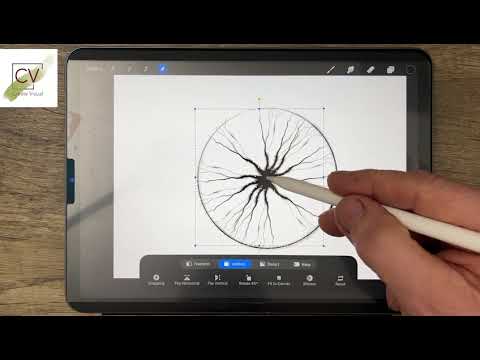
Create your own architectural tree symbols in Procreate, tailored to your personal drawing style and aesthetic. This fast technique shows how to build unique plant graphics that feel hand-rendered, expressive, and individual to your work, avoiding generic, repetitive symbols.
Once drawn, these tree symbols can be saved and reused as a permanent digital library, allowing you to drop them into future garden plans without redrawing. A simple, professional workflow that speeds up planting graphics while keeping your drawings distinctive and recognisably yours.
Want 50+ complete tutorials & full design workflow training? Visit my Workflow Course for Garden & Landscape Designers (Procreate, Morpholio Trace, SketchUp for iPad).
Let’s look at drawing a classic architectural tree symbol in Procreate. The first thing I’m going to do is to draw a circle. The circle is extremely crude because if I wait it snaps to an ellipse and then I touch this little triangle here and I can option for circle. So I’ve now got a perfect circle. This is simply my template. I then go to the layers and from layers I add a layer. So, I’ve now got a layer of transparency sitting over the top of this circle, and I’m going to be working in layer two. Now, what I’ll do is draw a branch. And I’m using a pen, which has this lovely sort of leeching ink effect. So, that as I release pressure on the pen, the line gets thinner and thinner. And you can see the ink sort of spreads out like that, giving it a very naturalistic look. And then all I need to do is add a few more branches coming out from here just to give it that little bit more character. And that’s really enough. That’s all I need to do at this point. So what I’m going to do is go to select and from select go to freehand and then simply draw around this branch. Once I get close to the little gray dot, I can lift the pen and touch the gray dot. And that is now selected. But what I need to do is to copy and paste. So I now have a copy of that. We can’t see that there’s a copy because the copy is sitting directly on top of its its original source. But if we go to layers, we can see that it has been copied from selection is a copy of that layer. Difficult to see in this video because it’s black on black, but it is there. We know it’s there. If I go to this selector here, it gives me the option to twiddle it around and to reposition it. reposition it against the stencil. So you can see that now when I say the stencil, I should have said against the original template underneath which is in a separate layer. So that’s not being affected any way by what I’m drawing here. What I’m then going to do is merge these two layers down. Now to do that, I touch this layer and it brings up a menu. Now that I’ve got a menu there, it says merge down and that one image becomes rather sorry those two images, the two images here become one. So it’s merged down into one single entity. I can then copy it differently. Swipe to the left and duplicate. Now that I have a duplicate, I can move across and do exactly what I did before. Let’s just move out slightly. Reposition this. And then I’ve got that which I can then obviously repeat exactly the same process until I have a complete tree. I move that inadvertently then. Not that that really matters because this has toggles on it which do mean that it gets bigger and smaller and I accidentally touched one of those toggles, but you can always get it back to size again. And of course now that I’ve got that I could actually just merge them all down. So, merge down and merge down and then copy that entire half. Duplicate, touch, twiddle around, and I now have a complete tree. And in fact, that overlap on some of those branches has created a rather more interesting patterning and an interesting dynamic to this tree. I can then switch off this underlying template. And there we have it. that’s ready to be exported to my permanent library. I never need to draw that again. What I’ll do is just merge this down. So, it’s a single entity. And you can see that what I have here is a handdrawn tree symbol which can be used multiple times. What I mean by that is this. Let’s just make it a little bit smaller. And I could populate this page with these trees. And of course, they can be any size. And yes, of course, I can color them in, which will happen in later videos.
Comments are closed.